Network Diagnostics Toolkit
A read-only PowerShell module and interactive menu for help desk and network technicians. It runs ping, traceroute, IP configuration, DNS, adapter, and TCP port checks, then saves the results as timestamped CSV and text reports plus paste-ready ticket notes.
- PowerShell
- .NET (Ping, TcpClient)
- NetTCPIP / DnsClient / NetAdapter
- tracert
- Pester
- PSScriptAnalyzer
- GitHub Actions
Overview
A PowerShell module for the first round of network troubleshooting on a Windows PC. Every check prints a clear [PASS], [FAIL], [WARN], or [INFO] line with a plain-language explanation, and the results can be saved as a report or turned into notes for a help desk ticket.
Problem
Help desk technicians repeat the same connectivity checks for every ticket, then retype the results into the ticket notes by hand.
Solution
Eleven module commands and a numbered menu. Every check returns the same result shape, so ping, DNS, and port results all feed one CSV file, one text report, and one block of ticket notes. Input is validated before anything is sent: explicit targets only, no address ranges or scans, at most 10 targets and 20 TCP checks per run, and no command that changes settings.
Key features
- 11 commands with comment-based help, plus an interactive numbered menu with [PASS]/[FAIL] output.
- Ping and port checks use .NET Ping and TcpClient with timeouts instead of Test-NetConnection, which took 8.9 s to report a closed port on the development PC, compared with 2.1 s for TcpClient.
- Reports are UTF-8 CSV and text files that never overwrite an existing file and neutralize spreadsheet-formula cells.
Architecture
- src/NetworkDiagnostics/: the module, with one file per exported command in Public/ and the shared logic in Private/.
- Each check has three steps: validate the input, collect data through small network wrapper functions, and interpret the result as PASS, FAIL, WARN, or INFO.
- Only the wrapper functions touch the network, so unit tests can replace them with mocks. Reports and ticket notes are built from the same result objects.
Try it or install it
Needs Windows 10, Windows 11, or Windows Server with Windows PowerShell 5.1 (built in) or PowerShell 7. No administrator rights needed.
Download NetworkDiagnosticsToolkit-1.0.0.zip from the release and extract it, or clone the repository and open apps\network-diagnostics-toolkit.
git clone https://github.com/enobot/nate.git cd nate\apps\network-diagnostics-toolkitStart the interactive menu.
powershell.exe -NoProfile -ExecutionPolicy Bypass -File .\Start-NetworkToolkit.ps1Or import the module and run the commands directly.
Import-Module .\src\NetworkDiagnostics\NetworkDiagnostics.psd1
Example output
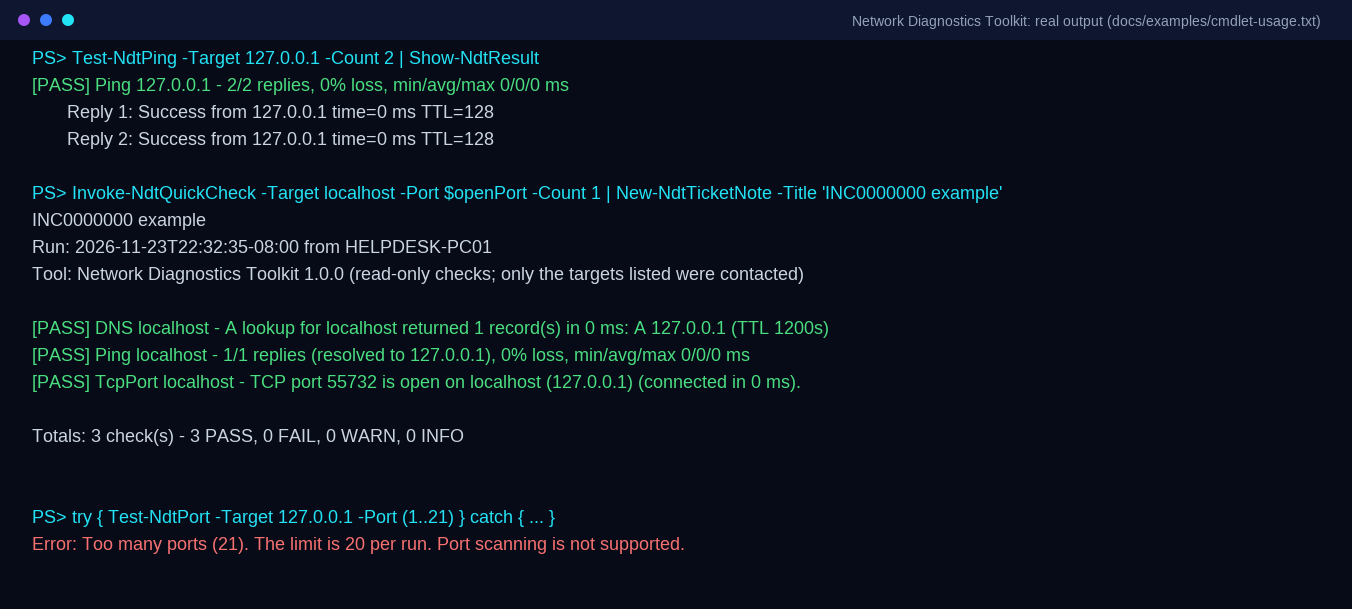
Real console output, captured with tools/New-ExampleTranscript.ps1 on 2026-11-23 on Windows PowerShell 5.1. The computer name, MAC addresses, and network details were replaced with documentation values.
PS> Test-NdtPing -Target 127.0.0.1 -Count 2 | Show-NdtResult
[PASS] Ping 127.0.0.1 - 2/2 replies, 0% loss, min/avg/max 0/0/0 ms
       Reply 1: Success from 127.0.0.1 time=0 ms TTL=128
       Reply 2: Success from 127.0.0.1 time=0 ms TTL=128

PS> Get-NdtAdapter | Show-NdtResult -NoDetails
[PASS] Adapter Ethernet - Up at 1 Gbps, MAC 00-00-5E-00-53-10
[WARN] Adapter Wi-Fi - Media disconnected: no link detected, MAC 00-00-5E-00-53-11. Check the cable and wall jack, or that Wi-Fi is connected.

PS> Invoke-NdtQuickCheck -Target localhost -Port $openPort -Count 1 | New-NdtTicketNote -Title 'INC0000000 example'
INC0000000 example
Run: 2026-11-23T22:32:35-08:00 from HELPDESK-PC01
Tool: Network Diagnostics Toolkit 1.0.0 (read-only checks; only the targets listed were contacted)

[PASS] DNS localhost - A lookup for localhost returned 1 record(s) in 0 ms: A 127.0.0.1 (TTL 1200s)
[PASS] Ping localhost - 1/1 replies (resolved to 127.0.0.1), 0% loss, min/avg/max 0/0/0 ms
[PASS] TcpPort localhost - TCP port 55732 is open on localhost (127.0.0.1) (connected in 0 ms).

Totals: 3 check(s) - 3 PASS, 0 FAIL, 0 WARN, 0 INFO

PS> Test-NdtPort -Target 127.0.0.1 -Port (1..21)
Error: Too many ports (21). The limit is 20 per run. Port scanning is not supported.
Testing
- 271 Pester tests: 260 unit tests with mocked Windows network calls and 11 integration tests against localhost and a TCP listener the tests open, including an end-to-end menu run in a separate PowerShell process.
- 94.3% code coverage of the module on Windows PowerShell 5.1.
- GitHub Actions runs the same tests on Windows PowerShell 5.1 and PowerShell 7, plus PSScriptAnalyzer, which fails the build on any warning. All three passed on the first run.
Screenshots & diagrams
(opens full size in a new tab)Limitations
- Windows only: it needs Windows 10, Windows 11, or Windows Server with Windows PowerShell 5.1 or PowerShell 7, because it uses tracert and the Windows networking modules.
- Read-only by design: it never changes network settings, never scans address ranges, and stops at 10 targets and 20 TCP checks per run.
- PowerShell 7 is tested in GitHub Actions only, not on the development PC. The timings above are single measurements on one PC, not benchmarks.
- Not on the PowerShell Gallery: publishing needs a Gallery API key, so it's installed from the repository or the release ZIP.
Who did what
- Portfolio project built by Nathanael Haig.
- The checks mirror the ping, tracert, and ipconfig troubleshooting in Nathanael's CSUF IT Telecommunications job.